← All boards
Signal Visualisation

Audio Level Display Demo_2

Plays on the mobile app
The Audio Level Display Demo_2 board in the WaveWarp DrawingBoard
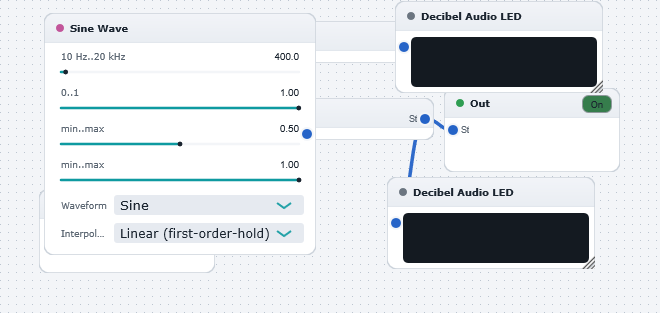
Audio Level Display Demo_2 — the board as it opens in the WaveWarp DrawingBoard.

What it does

Audio Level Display Demo

Illustrates the use of the Decibel Audio LED components for displaying the audio signal level. In this example, the mono display is used to measure the signal level of a pure tone from the Sine Wave Generator. Start the DrawingBoard. You will observe that the signal level is constant, as expected for a continuous pure tone.

The stereo display is used here to measure the signal level of a drum track. As expected, the indicated signal level fluctuates as the audio track evolves.

The displays are calibrated such that an amplitude of 1 corresponds to a dB value of 0. If the amplitude exceeds 1 (or the dB level exceeds 0), digital clipping has occured. This sounds nasty and should generally be avoided by reducing the gain somewhere on the DrawingBoard. A useful rule of thumb when working with WaveWarp is to ensure that an audio signal stays out of the "red zone" most of the time. This means that clipping will generally be avoided. To be absolutely sure, the built-in clip detector in the LED display is a completey accurate indicator of clipping. If this lights up, reduce the gain !

Refer to the "DigitalClippingEducationalExample.dwb" DrawingBoard for a detailed description of the signal level conventions used in WaveWarp.

Effects used

7 blocks 5 connections
In WaveWarp, 1998

How the original documented it

Audio Level Display Demo Illustrates the use of the Decibel Audio LED components for displaying the audio signal level. In this example, the mono display is used to measure the signal level of a pure tone from the Sine Wave Generator. Start the DrawingBoard. You will observe that the signal level is constant, as expected for a continuous pure tone. The stereo display is used here to measure the signal level of a drum track. As expected, the indicated signal level fluctuates as the audio track evolves. The displays are calibrated such that an amplitude of 1 corresponds to a dB value of 0. If the amplitude exceeds 1 (or the dB level exceeds 0), digital clipping has occured. This sounds nasty and should generally be avoided by reducing the gain somewhere on the DrawingBoard. A useful rule of thumb when working with WaveWarp is to ensure that an audio signal stays out of the "red zone" most of the time. This means that clipping will generally be avoided. To be absolutely sure, the built-in clip detector in the LED display is a completey accurate indicator of clipping. If this lights up, reduce the gain ! Refer to the "DigitalClippingEducationalExample.dwb" DrawingBoard for a detailed description of the signal level conventions used in WaveWarp.

Components used (1998)

Input WAV fileOutput Stereo WAVE DriverAudio ThruAudio ThruSine Wave GeneratorDecibel Audio LEDDecibel Audio LED